Help
How this page works
Click a category to jump to the explanation; or scroll to browse. There are even more explanations on the individual pages.( Look for the
 )
)
Sign Up
This is where you can create a new account.

Enter your name, email and password to create one, then check your email for the verification link. Since this site does not have enough reputation yet, it will most likely be in your spam folder. If it is, please mark as "NOT SPAM" and if you can't click the link; select the link, right-click and you should see an option to go to the page in the menu.
Log In
This is where you can log in to your account.

Enter the email and password you used in the sign up proccess. If you have forgotten your password, you can reset your password here.
Show Password:
Uncheck this if there is noone around to see your screen/phone that can steal your password to see what you type in the password fields.
Remember Me:
If this is checked, we will store a cookie that will keep you logged in when you close your browser. Only use if noone else will access your phone/computer.
Reset Password
This is where you can reset your password.
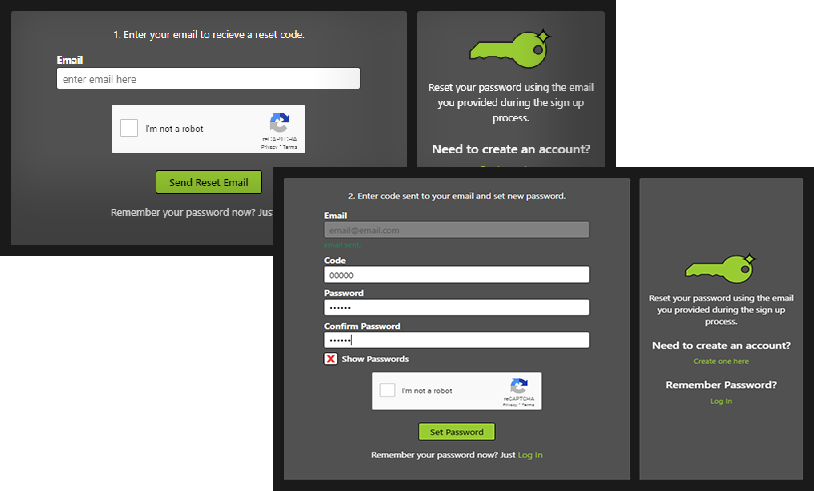
After you enter your email and press submit, you will recieve a code in your email. Keep this page open if you can while you check your email, and enter the code in the field along with your new password.
* This email may be sent to spam, please mark as "NOT SPAM" if this occurs.
* This code is only valid for a few minutes for security. If it has been a while since you entered your email address, you might need to get a new code or enter your email again.
Dashboard
This is where you can see your server resources used, check/send messages, find friends and other related actions.
* Please note only you will see the email address here; In fact only you will be able to see your personal dashboard.
How the dashboard works:
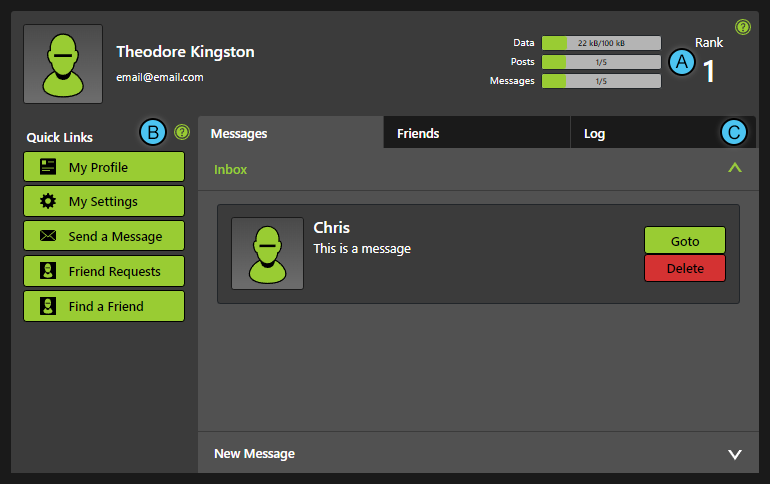
- Rank/Limits:
Your rank determines the amount of server resources you can use. The amount used/available are represented in the respective bar here. If you run out of data, you can always delete your posts/messages to free up some data. This system is needed because server hosting is surprizingly expensive. More options to upgrade rank are coming soon. - Quick Links:
You can use these buttons to quickly jump to a page/section. - Tabs:
These are the main functions of the dashboard. You can click a tab (Or a quick link) to open a section, and click a header inside the section to view a sub-section.
Messages:
- Inbox: This is where new messages/past conversations can be seen. You can goto a conversation or delete the entire conversation here.
- New Message: This is where you can search for a user based on name/nickname and start a new conversation or goto an existing one by clicking one of the results.
Friends:
- My Friends: This is a list of your friends if you have any. You can click on the images to visit thier wall.
- Friend Requests: If a user sends you a friend request, they will appear here. You can either take a look at thier wall, or just accept from this section.
- Find Friends: This is where you can search for friends from thier name, nickname or part of one. Click a user from the results to go to thier wall, and from there you can send a request.
Log: This is a simple list of important actions that have happened to your wall and when they happened- (ie friends, changing names, etc)
Wall
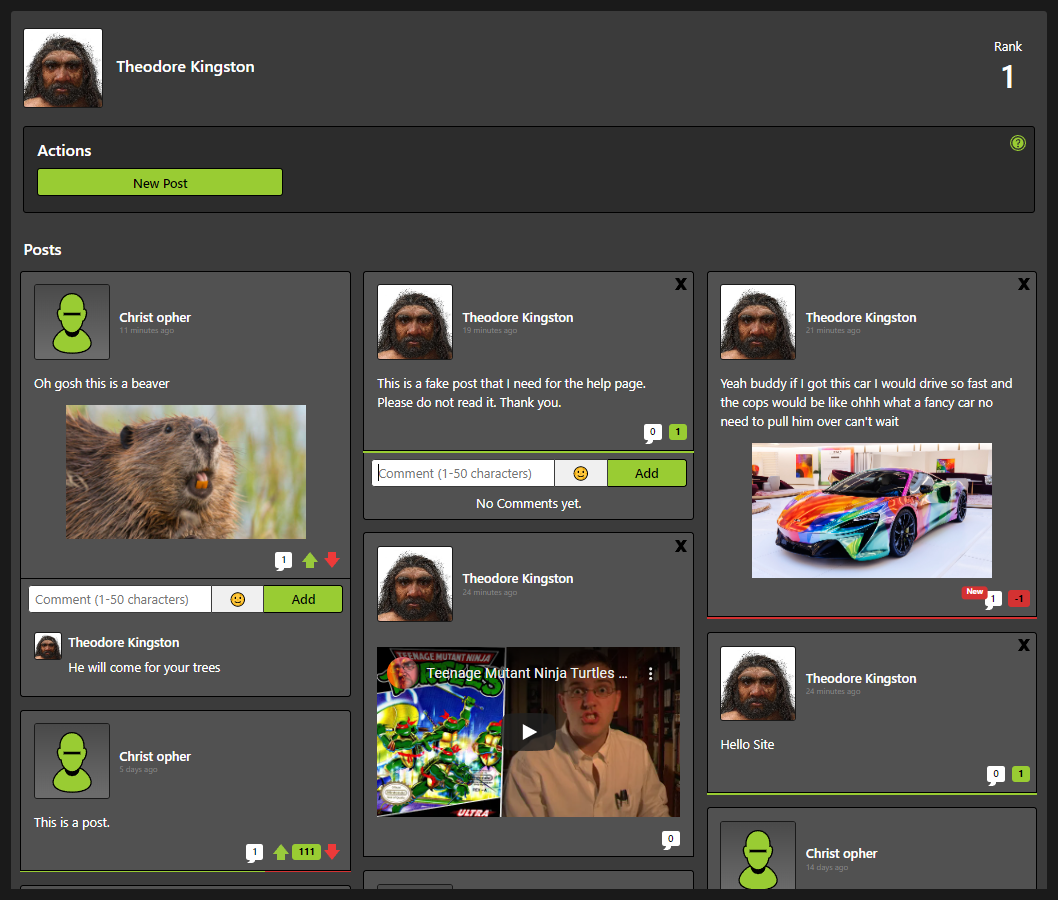
This is where you can create/view your posts and your friends' posts ( And like/dislike/comment on them )
Actions Panel
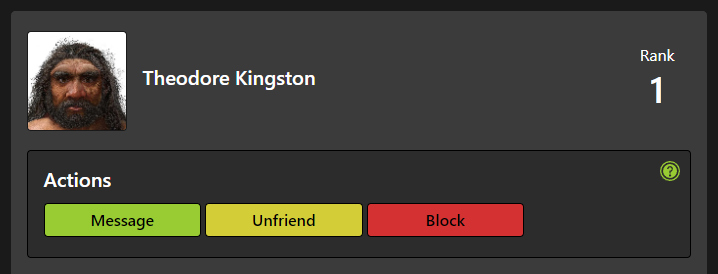
This panel will contain buttons which will perform different actions based on who's wall you are looking at.
On your wall, this is where you can initiate a new post.
On another user's wall, you can start/goto a conversation, send a friend request, accept/deny a friend request, unfriend this user, or block this user.
How posts work:
(this post has the comment panel opened)
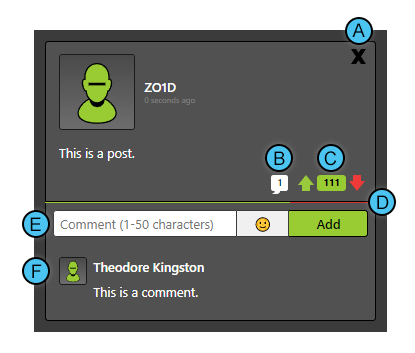
- Use this button to delete your post.
- This button will open/close the comment panel.
- These are the likes/dislikes for the post. Click the up button to like, down to dislike. The number in the center is the computed votes for the post.
- This bar is a visual representation of the likes/dislikes ratios. A larger green bar will signify that people liked your post, and a larger red bar will mean the opposite.
- This is where you can comment on the post. There is an emoji panel for convenience but the normal emojis on your keyboard will also work.
- Comments will be added here. You can click the image for each post to view the user's wall.
Settings
This is where you can change your personal account settings. Once you change a field, you will need to click the "Update Profile" button in order to save these settings to the database. Use the "Revert" buttons to go back to what was set before.

Public Profile:
If this is checked, the posts in your wall will be visible to any user, and they can also like/dislike and comment on your posts.
Show Help:
If this is checked, you will see clickable help buttons in certain areas to explain how the particular element works.
( It looks like this: - Click the button to toggle the explanations on/off. )
First Name / Last Name:
This is the name that will appear on posts/comments/messages etc unless you set a nickname.
Nickname: (Optional)
This is the name that will appear on posts/comments/messages etc if you set it. You can just delete the text to remove, and go back to using first name/last name.
Motto: (Optional)
This is some text that will appear at the top of your wall.
Profile Image:
This is the image that will appear on posts/comments/messages etc. When you create a new account, you will have the default image. You can click "Default" to go back to this image at any time. Click "New" to upload a new image. You will then have to crop the image in the "Crop Image" popup. Follow the instructions in the popup and press "Yes" to change your profile picture.
Messages
Have a conversation with another user.
* Please note: when sending an image, it will be shrunk down automatically to save space on the server.
How the messages work:
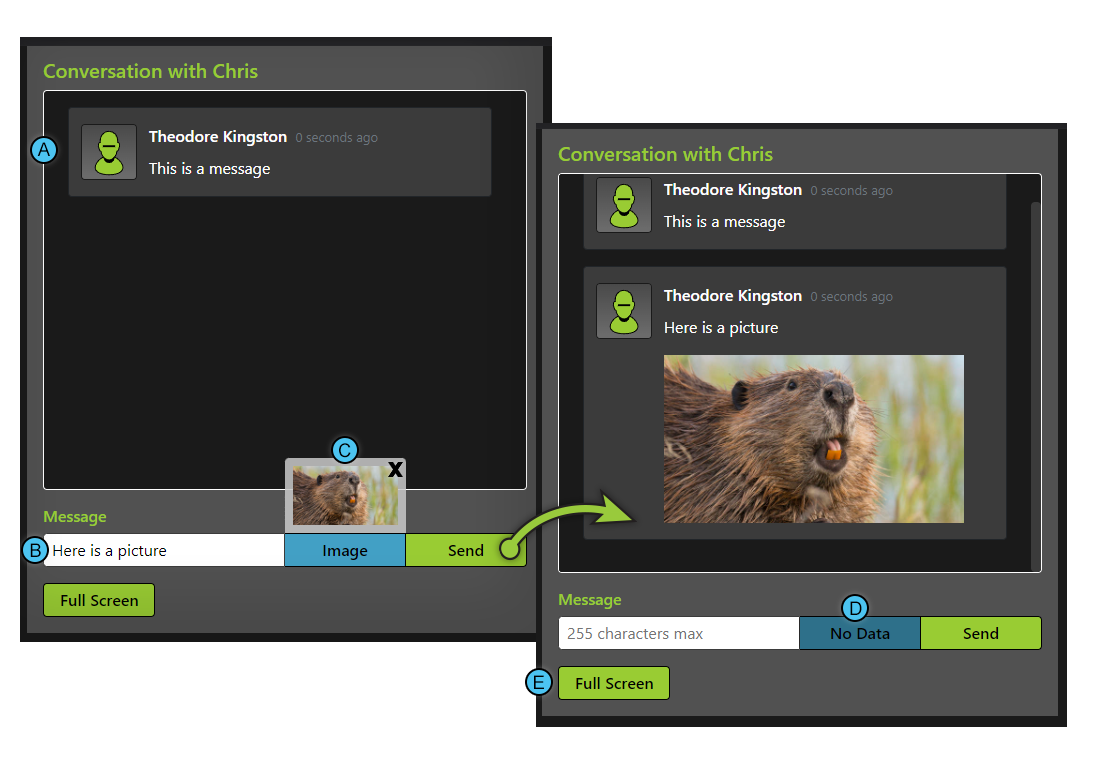
- This is a message. You can click the user's picture to go to thier wall.
- This is where you can enter the text of the message. (255 characters maximum)
- You can include an image when sending a message. When you click the "Image" button, you will get a prompt to choose an image. This image will then be shown above the button; you can click the "X" button to remove the image, or click the "Image" button again to choose another.
- If you do not have enough data to send an image, (See "Dashboard" above) this button will not be clickable, and will instead contain "No Data" as shown. Refer to "Dashboard" instructions above if you still want to send an image this way.
- The "Full Screen" button will... Make this message section full screen. This is helpful on smaller screens where scrolling becomes a problem. When in full screen, this button will turn red. Click it again to go back to regular screen mode.